Great question! 🔋 Checking your battery level works a little differently depending on which Toniebox you have — just click a box below and explore:
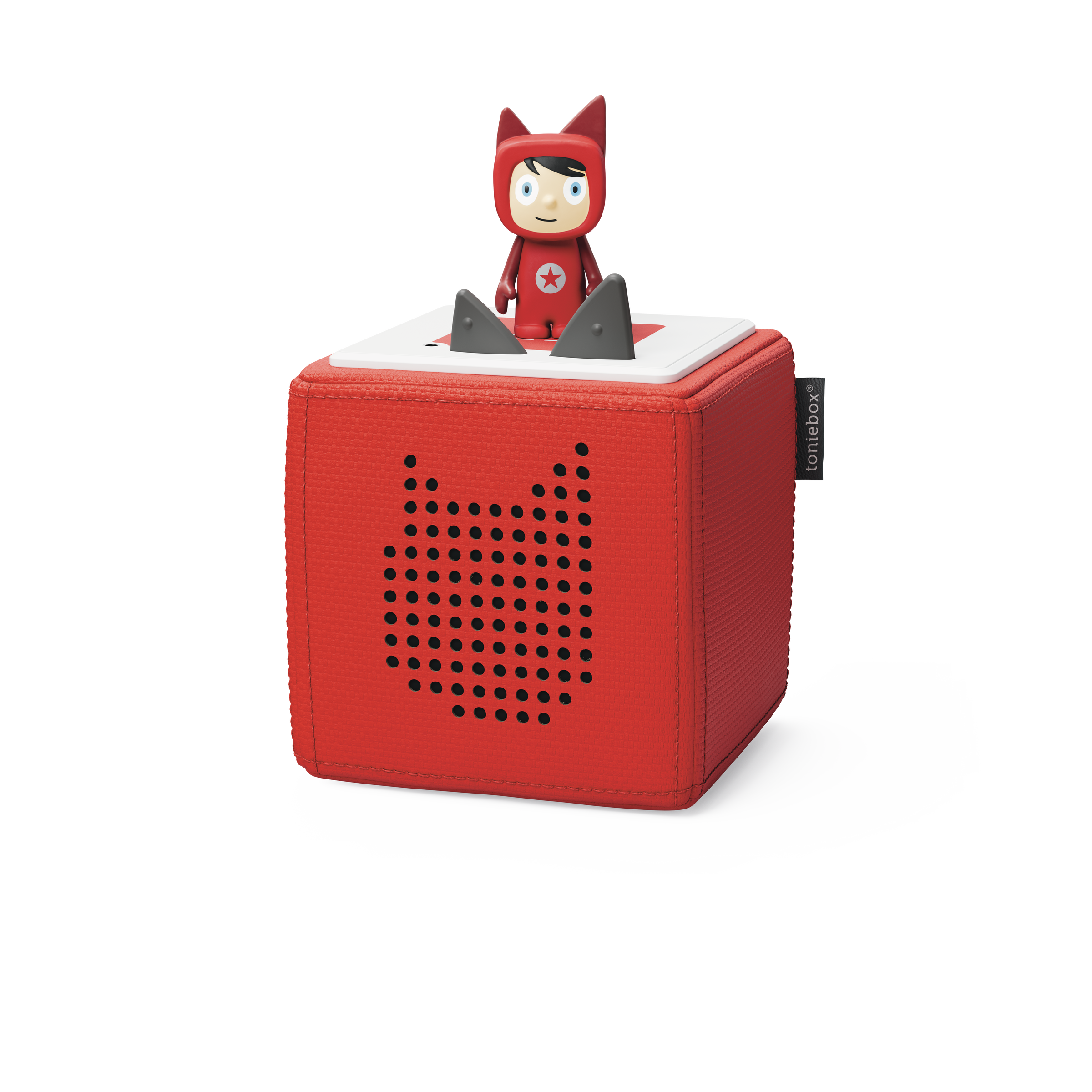
There's no dedicated way to check the battery level on Toniebox 1 — instead, it'll simply run until it starts getting low, then guide you through a series of clear signals:
| 🟠 |
Orange light + audible tone Battery is starting to run low. |
| 🔴 |
Red light + audio message Playback is about to stop. |
| 🔴💤 |
Flashing red (won't turn on) A clear audio prompt lets you know it's time to charge. |
| ⚫ |
No response Battery is fully flat — no lights, no sound, no reaction to voice commands. |
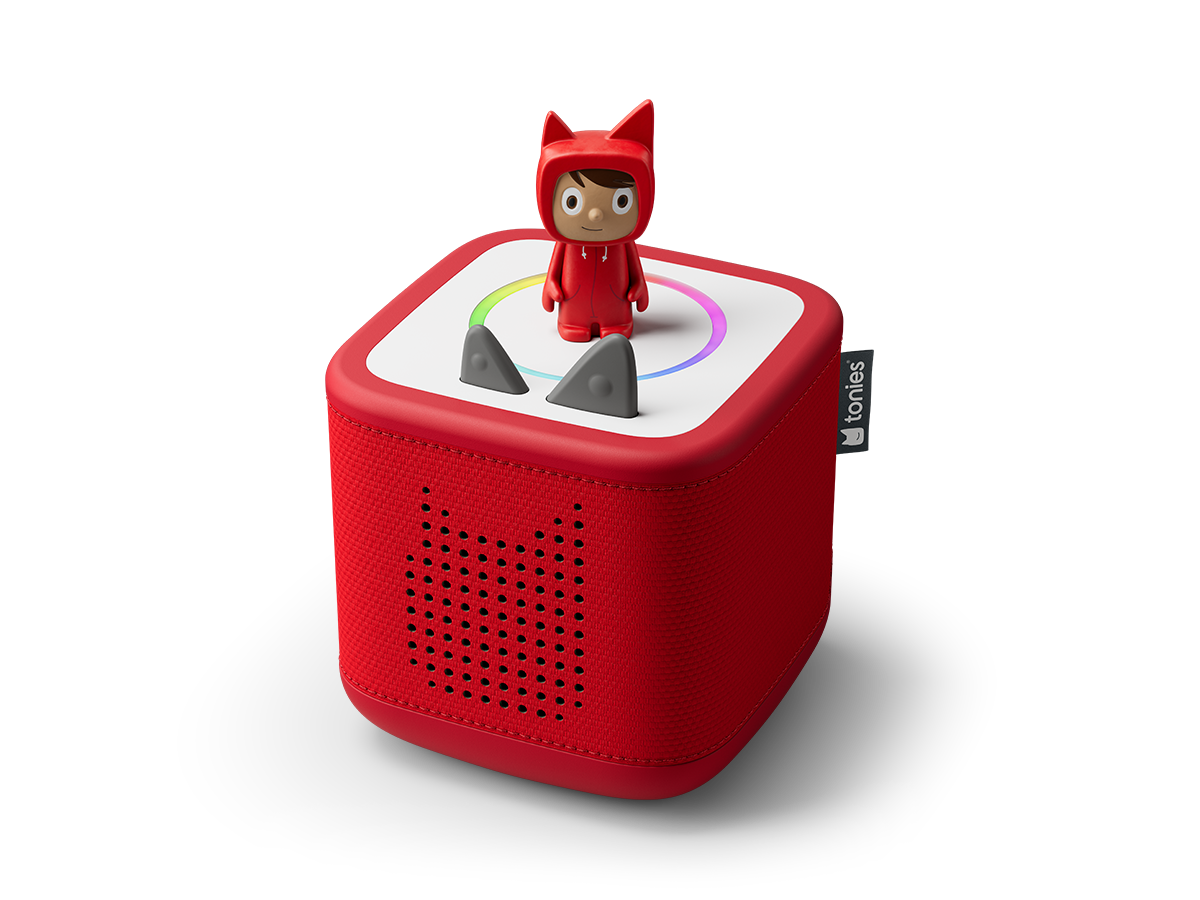
When plugged in to charge, the Dynamic Light Ring shows a live visual of your battery health — from a full green circle down to a partially flashing red ring when it's time to recharge.
Tip: Your Toniebox needs to be online for this to work — double-check your Wi-Fi connection if you're not seeing it.
Prefer checking on your phone? Open the tonies® app → tap Mine → select your Toniebox. You'll instantly see whether it's online and exactly what battery level it's sitting at.
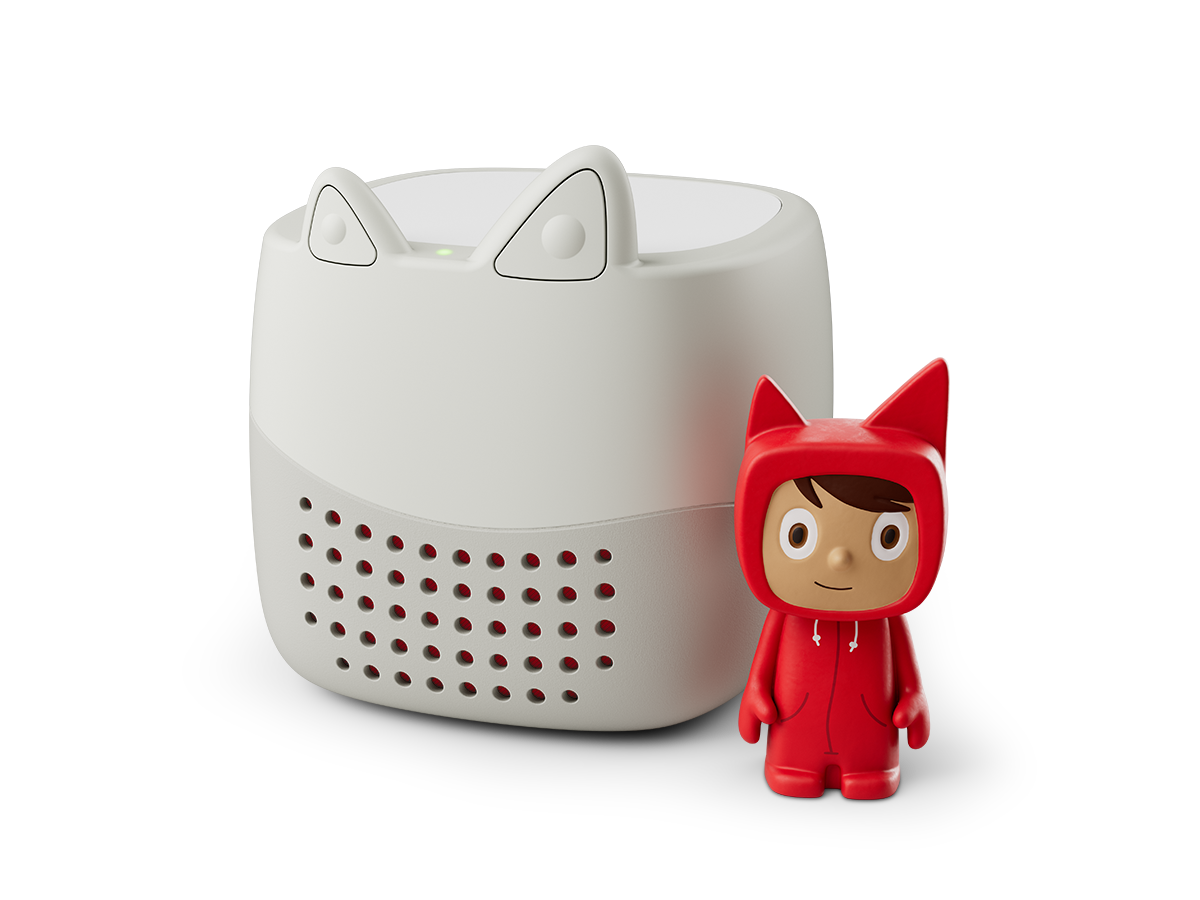
The easiest way to check your Toniebox Lite's battery is through the tonies® app → tap Mine → select your Toniebox. This shows both your connection status and current battery level.
Tip: Your Toniebox needs to be online for this to work — double-check your Wi-Fi connection if you're not seeing it.
On top of that, Toniebox Lite will always give you a heads-up when it's running low, using:
- 🟠 Orange light — battery is getting low
- 🔴 Red light — battery is empty
- 🔊 Audio cues alongside both